Docker for Web Development - Basic Concepts
Docker has revolutionized the way developers build, ship, and run applications. In this post, we will explore the fundamentals of Docker and how it can enhance your web development workflow.
This is a series of posts about Docker for Web Development:
What is Docker?
Docker is an open-source platform that allows developers to automate the deployment of applications inside lightweight, portable containers. These containers can run on any system that has Docker installed, making it easier to develop, test, and deploy applications consistently across different environments.
It is like putting software in a rectangular "standardized" container (like cargo in ships) so they can be easily moved and run anywhere without worrying about the underlying system differences.
We can run it in Mac, Windows, Linux, and even in the cloud. This makes it an ideal tool for web developers who need to ensure that their applications work seamlessly across various platforms.
Images and containers
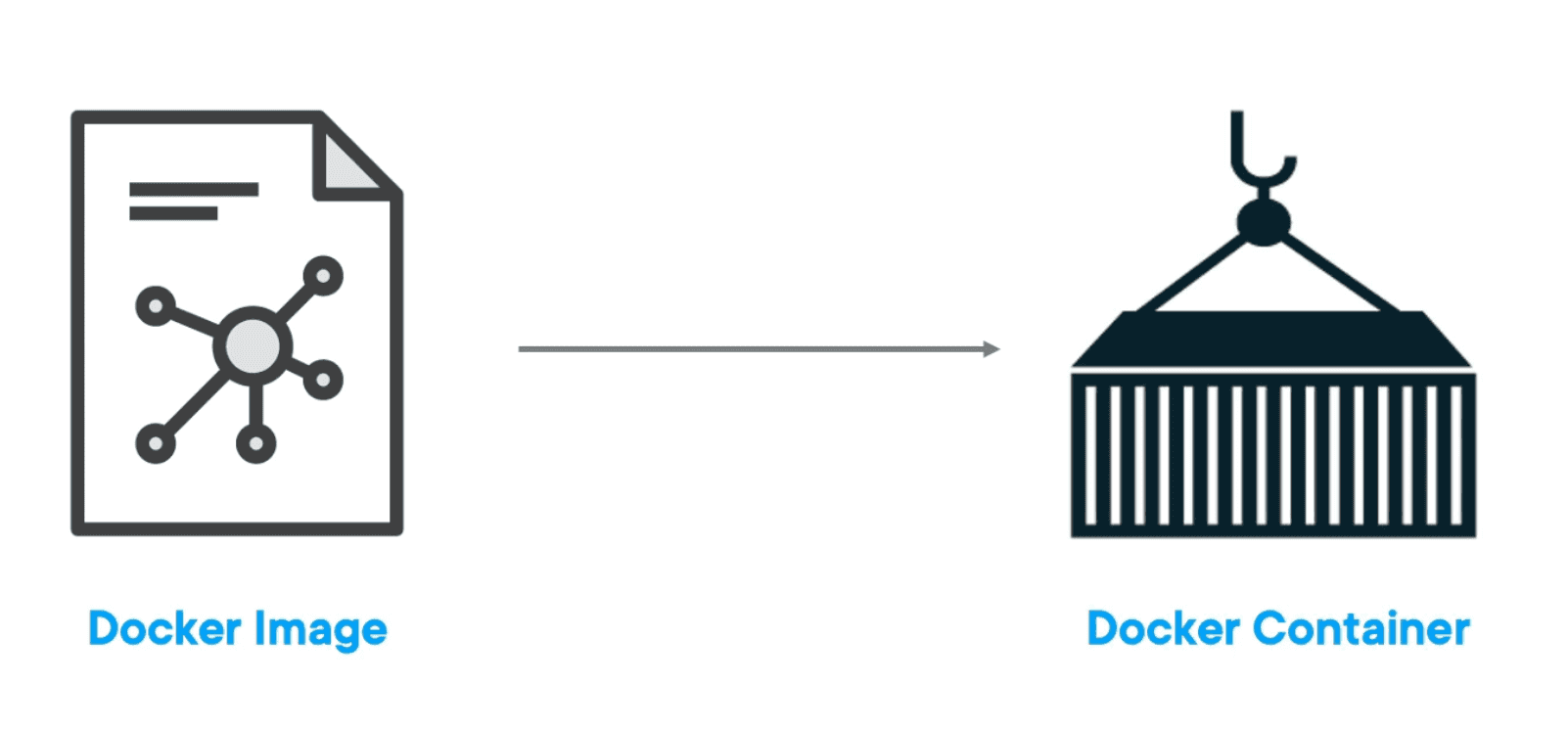
Docker relies on images and containers.
- Images are the blueprints for your application. They contain everything needed to run your application, including the code, runtime, libraries, and dependencies. You can think of an image as a snapshot of your application at a specific point in time. It is a read-only template composed of layered filesystems used to share common files and create Docker container instances.
- Containers are the running instances of images. When you start a container from an image, it creates an isolated and secured environment where your application can run without interference from other applications on the same system.
Containers vs Virtual Machines
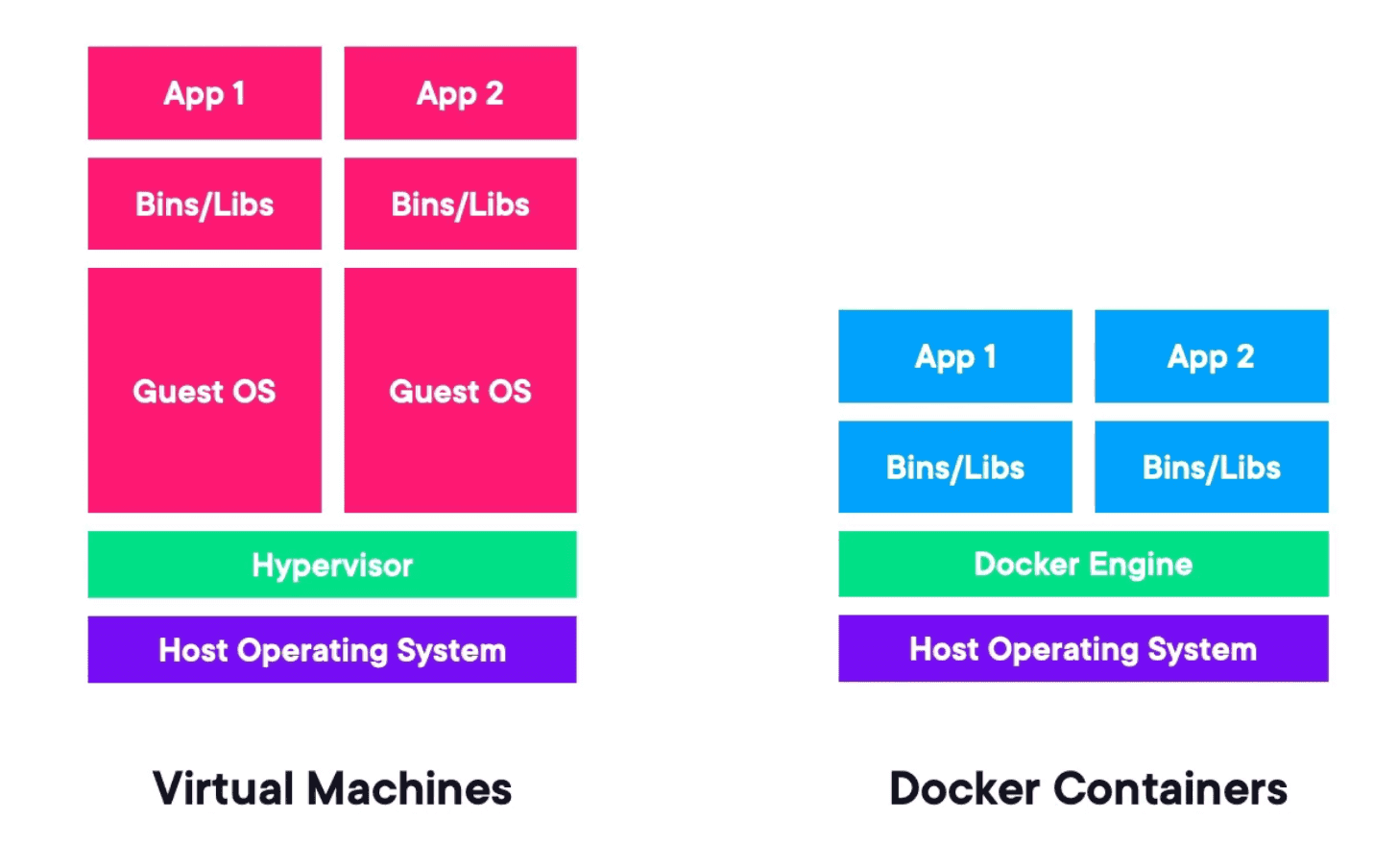
While both containers and virtual machines (VMs) provide isolation, they do so in different ways. VMs run a full operating system on top of a hypervisor, which can be resource-intensive. In contrast, Docker containers share the host operating system's kernel, making them more lightweight and efficient.
Therefore, Docker containers start up much faster than VMs and use less memory, making them ideal for web development where you may need to run multiple instances of your application for testing and development purposes.
Benefits of Using Docker for Web Development
- Consistency: Docker ensures that your application runs the same way in development, testing, and production environments. This eliminates the "it works on my machine" problem and reduces bugs caused by environment differences.
- Isolation: Each Docker container runs in its own isolated environment, allowing you to run multiple applications on the same host without conflicts.
- Portability: Docker containers can run on any system that has Docker installed, making it easy to move your application between different environments, such as from your local machine to a cloud server.
- Scalability: Docker makes it easy to scale your application by allowing you to run multiple instances of your containers. This is particularly useful for web applications that need to handle varying levels of traffic.
- Efficiency: Docker containers are lightweight and start up quickly, which can significantly speed up your development workflow and reduce resource usage compared to traditional virtual machines. It makes it easier to manage dependencies and ensures that onboarding new developers is smoother, as they can simply run the Docker container without worrying about setting up the environment.
Running the first docker container
The minimal requirement to run Docker is to have Docker installed on your machine. One of the easiest ways to get it is installing Docker Desktop, which is available for Windows and Mac. For Mac follow the instructions here.
Now let's pull an image from the Docker Hub.
docker pull nginx:alpineThis command will download the Nginx image based on the Alpine Linux distribution, which is a lightweight version of Linux.
Now we can see the images we have in our local machine using the command:
docker imagesTo run a container from the Nginx image, we can use the following command:
docker run -p 8080:80 nginx:alpineThis command will start a new container from the Nginx image and map port 80 inside the container to port 8080 on your host machine. You can access the Nginx welcome page by navigating to http://localhost:8080 in your web browser.