

Helm for Kubernetes - Templates and Functions
In this article, we'll dig into Helm templates and functions — the Go templating engine that lets a single Helm chart render different Kubernetes manifests depending on values.yaml. You'll see how to reference release, chart and value data, how to use built-in Sprig functions like default, quote, b64enc and toYaml, how to control flow with logical operators, and how to keep your templates DRY with helper functions in _helpers.tpl.
Series — Helm for Kubernetes:
- Basic Concepts
- Templates and functions (you are here)
- Managing Dependencies
What are Helm Templates? Go Templating for Kubernetes YAML
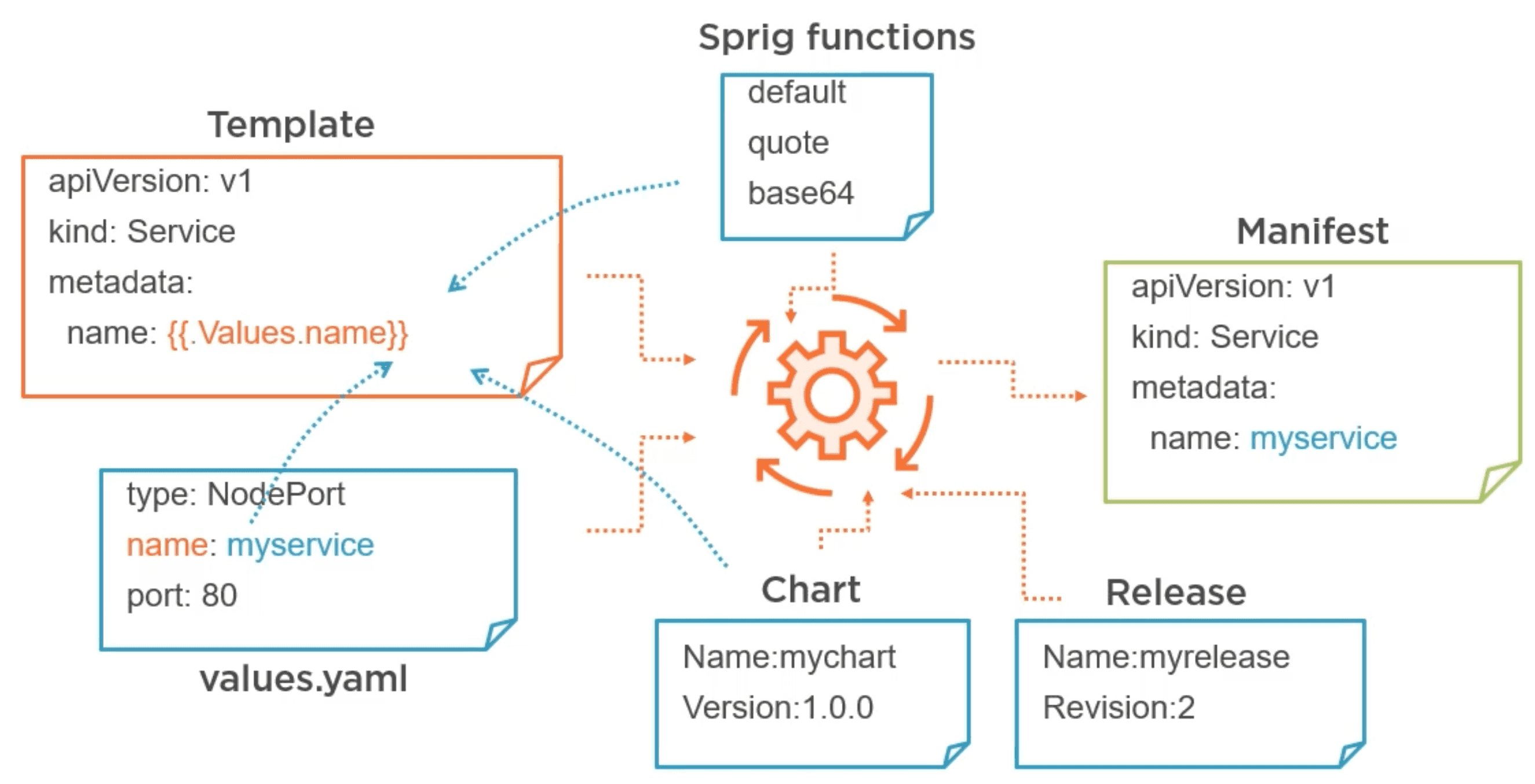
Helm templates are a powerful feature that allows you to define Kubernetes resources in a reusable and configurable way. Templates are written in Go's templating language and can include placeholders for values that can be customized at deployment time. This makes it easy to create flexible and maintainable Kubernetes manifests.
It uses curly braces {{ }} to denote template expressions, which can include variables, functions, and control structures.
Values in general come from the values.yaml file, which is a key part of Helm charts. This file allows you to define default values for your templates, which can be overridden at deployment time using the --set flag or by providing a custom values file.
# values.yaml
replicaCount: 1
image:
  repository: nginx
  tag: stable
  pullPolicy: IfNotPresent
service:
  type: ClusterIP
port: 80# deployment.yaml
apiVersion: apps/v1
kind: Deployment
metadata:
name: {{ .Release.Name }}-deployment
spec:
replicas: {{ .Values.replicaCount }}
selector:
matchLabels:
app: {{ .Release.Name }}
template:
metadata:
labels:
app: {{ .Release.Name }}
spec:
containers:
- name: {{ .Release.Name }}
image: "{{ .Values.image.repository }}:{{ .Values.image.tag }}"
imagePullPolicy: {{ .Values.image.pullPolicy }}
ports:
- containerPort: {{ .Values.service.port }}Built-in Objects: Data Available in Helm Templates
Helm templates have access to a variety of data. Some of the most used are:
- Release information: This includes the release name, namespace, and other metadata about the Helm release. They are available through the
.Releaseobject in templates. For example, you can access the release name using{{ .Release.Name }}. - Values: These are the values defined in the
values.yamlfile or provided at deployment time. They are available through the.Valuesobject in templates. For example, you can access a value defined invalues.yamlusing{{ .Values.someValue }}. - Chart information: This includes metadata about the Helm chart itself, such as the chart name, version, and description. They are available through the
.Chartobject in templates. For example, you can access the chart name using{{ .Chart.Name }}. - Capabilities: This includes information about the Kubernetes cluster and its capabilities. They are available through the
.Capabilitiesobject in templates. For example, you can check if a certain API version is available using{{ .Capabilities.APIVersions.Has "apps/v1" }}. - Environment variables: Helm templates can also access environment variables defined in the system where Helm is running. They are available through the
.Envobject in templates. For example, you can access an environment variable using{{ .Env.SOME_ENV_VAR }}. The environment variables can be set with the--setflag, for examplehelm install my-release my-chart --set SOME_ENV_VAR=value.
Variable Scope in Helm Templates: The with Statement
The with statement in Helm templates is used to create a new scope for a variable. This is useful when you want to work with a specific subset of data without affecting the outer scope. For example:
spec:
{{- with .Values.service }}
  type: {{ .type }}
  ports:
    - port: {{ .port }}
      targetPort: {{ .targetPort }}
{{- end }}
This is equivalent to:
spec:
  type: {{ .Values.service.type }}
  ports:
    - port: {{ .Values.service.port }}
      targetPort: {{ .Values.service.targetPort }}
Built-in Helm Template Functions (Sprig)
Helm templates support a variety of built-in functions that can be used to manipulate data and perform operations within templates. Some commonly used functions include:
default: This function allows you to specify a default value for a variable if it is not defined. For example,{{ .Values.someValue | default "defaultValue" }}will use "defaultValue" ifsomeValueis not defined invalues.yaml.required: This function allows you to specify that a variable is required and will throw an error if it is not defined. For example,{{ required "someValue is required" .Values.someValue }}will throw an error ifsomeValueis not defined invalues.yaml.quote: This function wraps a string in double quotes. For example,{{ .Values.someValue | quote }}will output"someValue".indent: This function indents each line of a string by a specified number of spaces. For example,{{ .Values.someValue | indent 4 }}will indent each line ofsomeValueby 4 spaces.toYaml: This function converts a data structure to YAML format. For example,{{ .Values.someValue | toYaml }}will outputsomeValuein YAML format.upper: This function converts a string to uppercase. For example,{{ .Values.someValue | upper }}will outputSOMEVALUE.lower: This function converts a string to lowercase. For example,{{ .Values.someValue | lower }}will outputsomevalue.replace: This function replaces occurrences of a substring with another substring. For example,{{ .Values.someValue | replace "old" "new" }}will replace "old" with "new" insomeValue.trim: This function removes leading and trailing whitespace from a string. For example,{{ .Values.someValue | trim }}will remove any leading or trailing whitespace fromsomeValue.trimSuffix: This function removes a specified suffix from a string. For example,{{ .Values.someValue | trimSuffix "suffix" }}will remove "suffix" from the end ofsomeValueif it exists.trunc: This function truncates a string to a specified length. For example,{{ .Values.someValue | trunc 63 }}will truncatesomeValueto the first 63 characters.randAlphaNum: This function generates a random alphanumeric string of a specified length. For example,{{ randAlphaNum 10 }}will generate a random string of 10 alphanumeric characters.b64enc: This function encodes a string in base64 format. For example,{{ .Values.someValue | b64enc }}will output the base64-encoded version ofsomeValue.
A full list of available functions can be found in the Sprig documentation.
Chaining Helm Functions with Pipelines
In Helm templates, you can concatenate multiple functions to perform complex operations. For example, base64 encoding a value and then quoting it can be done as follows:
apiVersion: v1
kind: Secret
[...]
data:
  db-root-password: {{ .Values.dbRootPassword | b64enc | quote }}
Logical Operators and Conditionals in Helm Templates
Helm templates support logical operators that can be used to perform conditional checks and control the flow of template rendering. Some commonly used logical operators include:
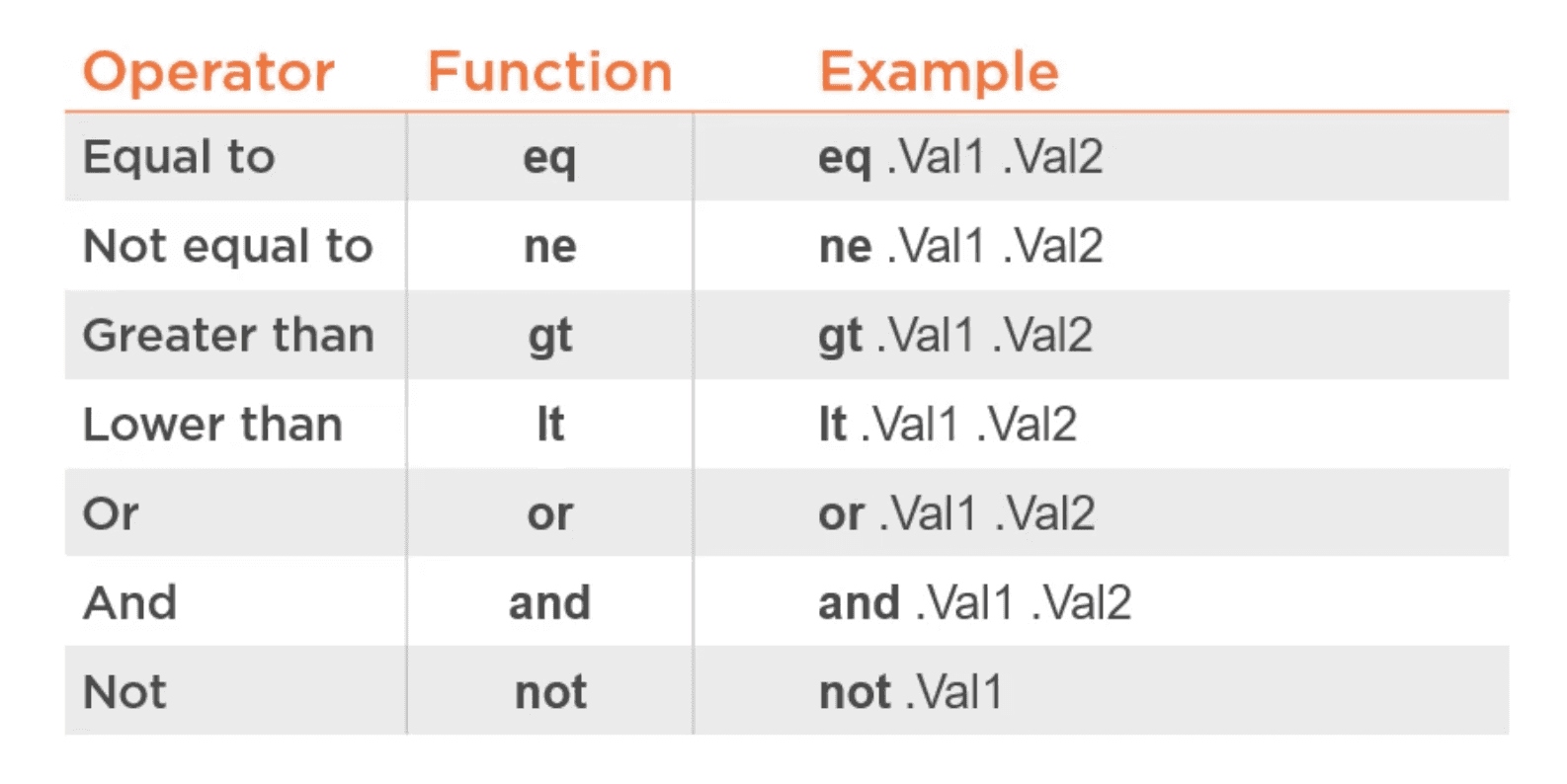
For example, you can use the and operator to check if multiple conditions are true:
{{- if and (eq .Values.environment "production") (eq .Values.enableFeatureX true) }}
  # Render this section only if both conditions are true
{{- end }}
Helper Functions in Helm: Reusing Logic with _helpers.tpl
Helper functions in Helm templates are custom functions that you can define in your chart to encapsulate reusable logic. They are snippets defined in a special file called _helpers.tpl located in the templates directory of your chart. Helper functions can be used to simplify your templates and make them more maintainable. Note the underscore at the beginning of the file name, which indicates that it is a special file that should not be rendered as a Kubernetes resource.
To define it we use the define keyword followed by the name of the helper function. The body of the function contains the logic that you want to encapsulate. For example, we can define a helper function to generate a full name for our application:
# templates/_helpers.tpl
{{- define "my-web-app.fullname" -}}
{{- printf "%s-%s" .Release.Name .Chart.Name | trunc 63 | trimSuffix "-" -}}
{{- end -}}
Then it can be used in other templates like this:
metadata:
  name: {{ include "my-web-app.fullname" . }}
Note the dot (.) at the end of the include function. This is important because it passes the current context to the helper function, allowing it to access the same data as the template that called it.
Related Reading
Keep going through the Helm series and reinforce the Kubernetes primitives your templates render:
- Previous: Helm for Kubernetes — Basic Concepts — Helm chart structure,
Chart.yaml, and your firsthelm install. - Next in this series: Helm for Kubernetes — Managing Dependencies — package and publish charts, and manage subcharts with conditions, tags and imported values.
- Kubernetes for Developers — ConfigMaps and Secrets — pair perfectly with
b64enc,quoteandtoYamlin Helm templates. - Kubernetes for Developers — Deployments and Replica Sets — the Deployment manifest most Helm charts template.
- Kubernetes for Developers — Services — templating Services from
values.yaml. - Sprig template function documentation — the full library of functions available inside Helm.