Preparing Your Environment For SAP BTP Development on Kyma Runtime
In this blog post, we will walk you through the steps to set up your environment for SAP BTP development on the Kyma runtime. We will cover the prerequisites, installation of necessary tools, and configuration of your development environment.
This post is part of a series on SAP BTP Kyma Runtime development:
Series — SAP BTP Kyma Runtime:
- Preparing Your Environment For SAP BTP Development on Kyma Runtime (this post)
- Deploying Your First CAP Application on SAP BTP Kyma Runtime
- Creating BTP Service Instances on SAP BTP Kyma Runtime with the Service Operator
- Binding BTP Service Instances to your CAP Application with Kyma Runtime
- The Chart Templates Behind Your CAP Kyma Deployment
- Creating roles for your CAP Application on SAP BTP Kyma Runtime
- Using Istio Gateway as Entry Point in SAP BTP Kyma Runtime
Prerequisites
Before you begin, ensure you have completed the following prerequisites:
- An active SAP BTP account with Kyma runtime enabled.
Follow the instructions here to enable the Kyma runtime, and here to assign the necessary roles for your user. For a guided tutorial on creating a Kyma environment instance, refer to the Prepare for Deployment in the SAP BTP, Kyma Runtime.
- Entitlements for the required services in your SAP BTP subaccount.
Follow the instructions here to check and manage your entitlements.
- A container registry (e.g., Docker Hub, GitHub Container Registry, Azure Container Registry, etc.) to store your container images.
Install Required Tools
To develop on the Kyma runtime, you will need to install the following tools:
-
kubectl: The command-line tool for interacting with Kubernetes clusters.
- Installation instructions can be found here.
For MacOS you can install it via Homebrew running:
brew install kubectl -
Docker: The platform for developing, shipping, and running applications in containers.
- Installation instructions can be found here.
-
Helm: The package manager for Kubernetes.
- Installation instructions can be found here.
For MacOS you can install it via Homebrew running:
brew install helm -
kubelogin: A tool to manage Kubernetes authentication.
- Installation instructions can be found here
For MacOS you can install it via Homebrew running:
brew install int128/kubelogin/kubelogin -
Paketo Build: A tool for building container images from source code.
- Installation instructions can be found here.
For MacOS you can install it via Homebrew running:
brew install buildpacks/tap/pack
Log in to the Kyma Cluster
Once you have installed the required tools, you need to log in to your Kyma cluster. To do this, follow these steps:
-
Download the
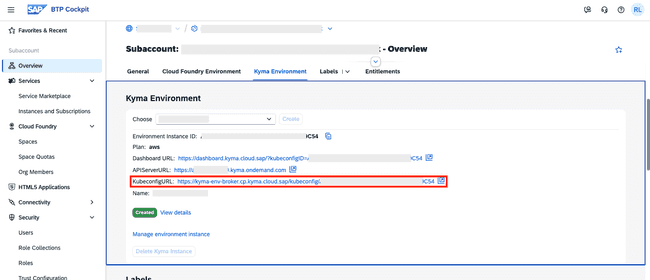
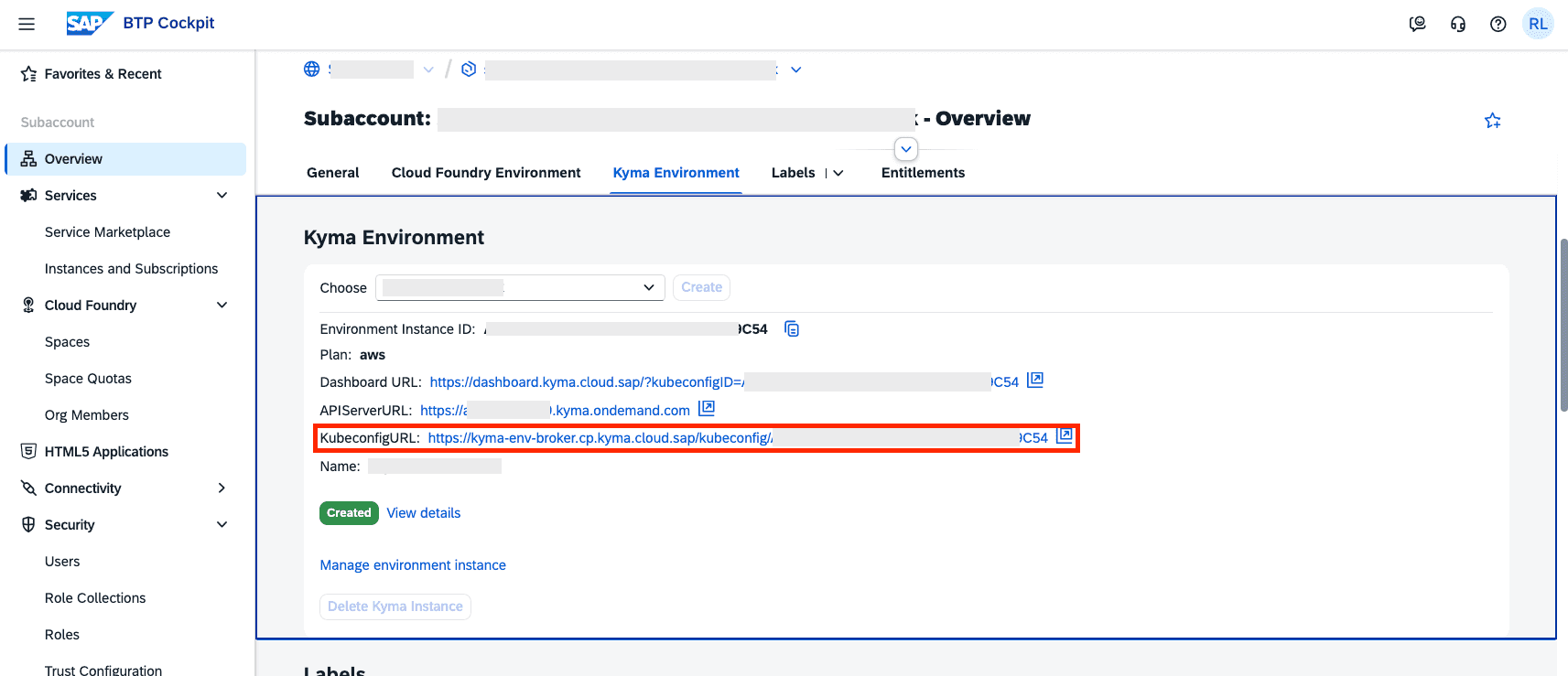
kubeconfig.yamlfile for your Kyma cluster from the SAP BTP cockpit.- BTP cockpit > Subaccount > Kyma Environment > KubeconfigURL
-
Copy the
kubeconfig.yamlfile you just downloaded to the~/.kube/directory and rename it toconfig. If there is already aconfigfile in that directory, you can either back it up or replace it with the new one. -
Use kubectl to verify that you are connected to the correct cluster:
kubectl cluster-info
- This will fire the authentication process and open a browser window for you to log in with your SAP BTP credentials. After logging in, you should see information about your cluster.